
How to Keep a Course That Only Streams
Tools used, in order
What you end up with: One MP4 per lecture, at a resolution you chose, with the intro and outro removed.
Course platforms rarely hand you a file. They stream segments, and the segments are listed in a playlist you never see in the address bar. This guide walks through turning one of those playlists into a folder of usable MP4s.
It is written from the problems we hit while doing this, not from the documentation of the format. Where something did not work for us, that is in the text.
First, does this apply to your course?
Two conditions have to hold.
You can already play the video in your own browser, and the platform does not encrypt the segments with DRM. If the video is behind Widevine or FairPlay, the segments are ciphertext and the decryption keys never leave the player's protected memory. FlowPick does not attempt to break that, and no browser-side tool can.
The quick check: open DevTools, go to the Network panel, filter for m3u8, and start the video. If a playlist request appears and the segment responses are readable media, the stream is unencrypted and this workflow applies. If you only see segment requests with no playlist, or the responses look like noise, stop here — this guide will not help.
Also worth stating plainly: this workflow is for material you are allowed to keep, such as your own recordings or courses whose terms permit offline copies. Whether a specific platform allows it is in that platform's terms, not in this guide.
Why the playlist is the part that matters
HLS is specified in RFC 8216, and the structure it defines is the reason this workflow has two steps where you would expect one.
A master playlist does not contain media. It lists variants, each with its own resolution and its own media playlist, which in turn lists the actual segments. Downloading "the video" therefore means choosing a variant first, whether you do it deliberately or let a tool do it for you.
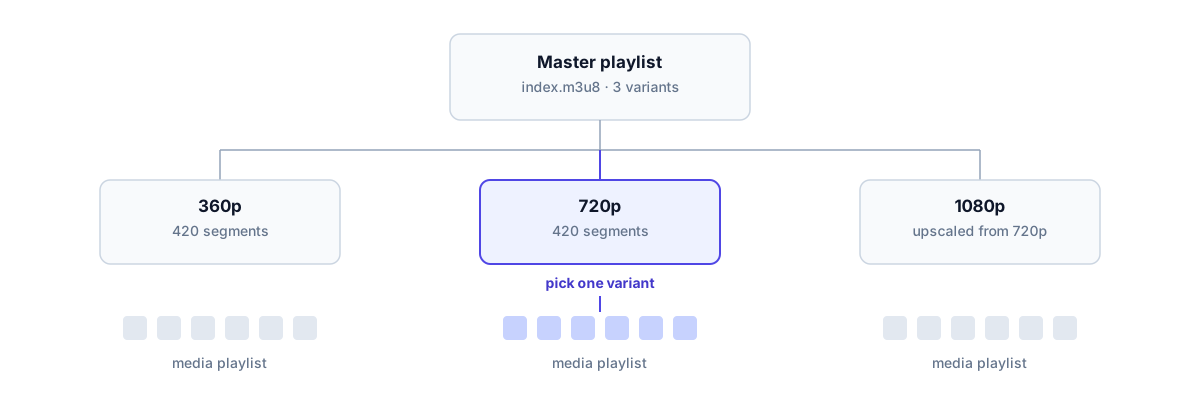
One master playlist, three variants, one segment list per variant. The highlighted variant is the one this guide downloads.
Step 1: Read the playlist before you download anything
Copy the .m3u8 URL from the Network panel and paste it into the playlist analyser. The download step requires the FlowPick browser extension; install it in a supported browser before continuing.
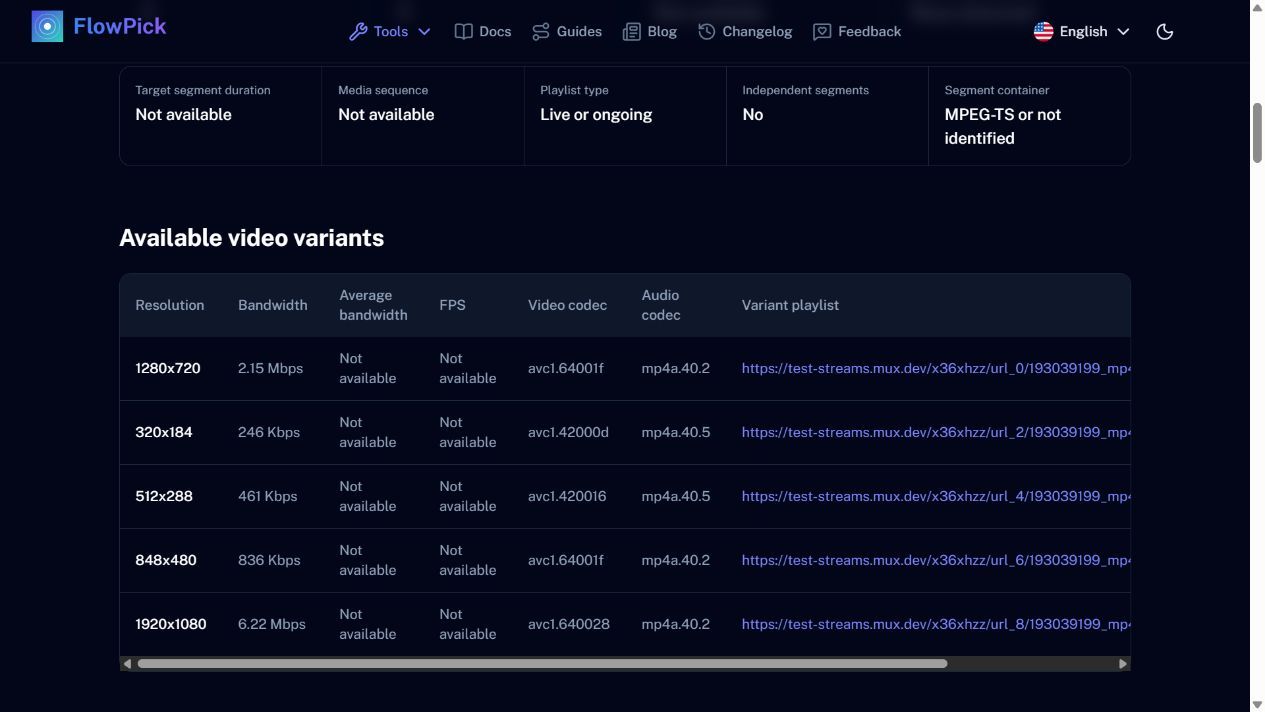
Public Mux test stream, not a course recording. The master lists five variants; open a variant media playlist separately to inspect its segments.
The analyser lists the variants, declared resolutions and codecs in a master playlist, along with any separate audio entries. Open the chosen variant’s media playlist separately to inspect segment counts and listed duration. A master playlist itself has no media segments. That matters more than it sounds:
- A course recorded in 2020 is often stored at 720p while the master also advertises a 1080p variant that was upscaled from it. Downloading the biggest variant gets you a larger file with no extra detail.
- Separate audio tracks are common on newer platforms. If you hand the master playlist straight to a downloader, audio handling becomes something you find out about after the fact.
- Segment count tells you roughly how long the download will take and whether the browser will hold up. A two-hour lecture is several hundred segments.
Step 2: Give the downloader one variant, not the master
Take the URL of the variant you picked and paste it into the M3U8 downloader.
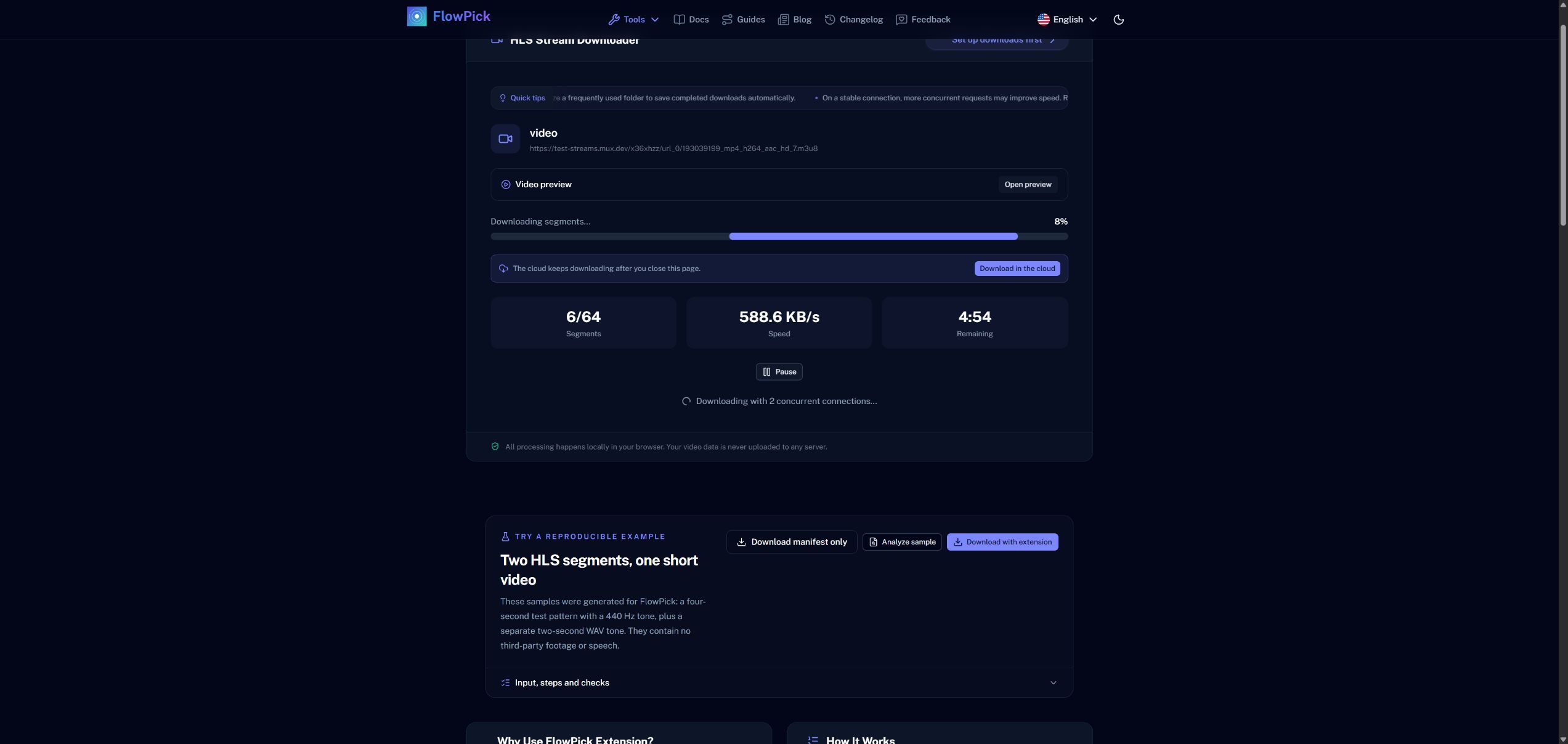
Real download of the public Mux 720p test variant in Chrome with FlowPick installed. This is a progress snapshot, not a completed course archive.
Passing a single variant instead of the master is deliberately more work, because it removes a decision from the tool: the segment list is fixed, so a failure points at a specific segment instead of at variant selection.
If the playlist needs a referer or cookie to serve segments, the extension route usually works better than the standalone page, since the extension attaches the request context from the tab that is already playing the video.
Step 3: Merge and watch for the two common stops
The downloader fetches the segments and assembles them into a single MP4 in the browser. Nothing is uploaded.
Two things interrupt this step in practice:
Signed segment URLs expiring mid-download. Many CDNs sign each segment URL with a short expiry. A 40-minute download can outlive them, and the tail of the file 403s. Re-copying the playlist gets a fresh signature; a shorter variant or a smaller range gets you under the expiry window.
Browser storage limits. A long course is gigabytes. Chrome and Edge write through the file system, so the limit is your disk. Firefox stages into browser storage and asks you to save the result afterwards, which needs free space in both places at once. Close other tabs before starting a multi-hour job.
Keep the tab open until it finishes. Backgrounding is fine; closing is not.
Step 4: Trim what you will never rewatch
Recorded lectures tend to carry 20–40 seconds of title card at the front and a slide of "thank you for watching" at the end. Multiply that by a semester and it is worth removing.
The video trimmer cuts by timestamp. Work from the merged file rather than from segments — one operation instead of several, and you keep the original until you are satisfied with the cut.
Check the result for two things before deleting the original: that the audio does not drift out of sync near the cut, and that the first second after the cut is not a frozen frame. Both are consequences of cutting near a keyframe rather than at an arbitrary point.
Where people get stuck
The analyser shows one variant but downloads fail. Check whether the playlist requires a specific Referer header. Some course platforms reject requests that do not look like they came from the player page.
The merged file plays but has no sound. The audio was a separate track that did not get merged. Go back to the analyser, look for a separate audio entry in the master playlist, and check whether the downloader has an option for it. If it does not, download the audio variant through the audio downloader and keep the two files together.
Every segment 404s after the first minute. The playlist is stale. Re-open the lecture in the player, re-copy the current playlist URL, and start again.
What you end up with
One MP4 per lecture at a resolution you chose, with the padding trimmed. Name the files so the ordering survives: course-03-hashing.mp4 sorts better than a timestamp, and you will be glad of it two years from now.
The format conversion page covers what the merge step does not change — container, codecs, and why a 720p source stays 720p.