
How to Batch Download Images from Any Website
When you're doing design research or collecting competitor assets, the worst part is saving images one by one. Eighty product shots on a supplier's site, high-res images in a gallery, or even a portfolio from some big-name studio — right-click, save as, rename, repeat. That's not work. That's manual labor.
The Problem with Right-Click Save
Most people only realize they need batch image downloading when they're already stuck in the loop — right-click, save as, rename, right-click, save as, rename. Browsers have no built-in "select all images and download" feature.
Third-party tools exist, but they fall into two camps: lightweight extensions that only scan <img> tags (missing lazy-loaded images and background images), or desktop programs you have to install (which can't carry your browser login session, so images behind authentication return 403).
FlowPick's image downloader runs inside the browser, carrying your current login session. It captures images by monitoring network requests, not just scanning <img> tags.
What FlowPick Can Detect
Not all images live inside <img> tags. FlowPick captures images by monitoring the actual network requests the browser makes, covering these sources:
- Standard
<img>elements — the most common type <picture>and<source>elements — responsive images with multiple resolutions; FlowPick picks the highest-resolution variant- Lazy-loaded images — images that load on scroll, captured once they enter the DOM
<video>poster frames — video thumbnail posters
The scanner runs against the current state of the DOM. Areas you haven't scrolled to, images that haven't loaded yet — they won't appear in the list. Keep this in mind while using it.
What it can't detect:
- Canvas-rendered images — no network request, invisible to the extension
- Base64 inline images — embedded directly in HTML, not standalone resources
- CSS
background-image— may or may not be detected, depending on how the site implements it
Supported Image Formats
| Format | Extension | Common Use |
|---|---|---|
| JPEG | .jpg, .jpeg | Photos, product images |
| PNG | .png | Screenshots, graphics with transparency |
| GIF | .gif | Animations, icons |
| WebP | .webp | Modern web format, usually smaller than JPEG |
| SVG | .svg | Icons, logos, vector illustrations |
A note on WebP: all major browsers support it, but some older desktop software (pre-2021 Photoshop, certain Windows apps) can't open it directly. If you need JPEG compatibility, FlowPick lets you filter to only download .jpg/.jpeg.
Step-by-Step
Step 1: Open the Page and Scroll Through It First
Open the page with your target images. If it's a lazy-loaded gallery (most modern image-heavy sites are), slowly scroll from top to bottom first to let images actually load into the DOM before opening FlowPick.
A lot of people skip this step, then wonder why the extension only shows a handful of images. The top half of the page loaded, but images below the fold aren't in the DOM yet — FlowPick can't capture what hasn't loaded.
Step 2: Open the FlowPick Popup
Click the FlowPick icon in your browser toolbar. The badge number shows the total media resources detected on the current page.
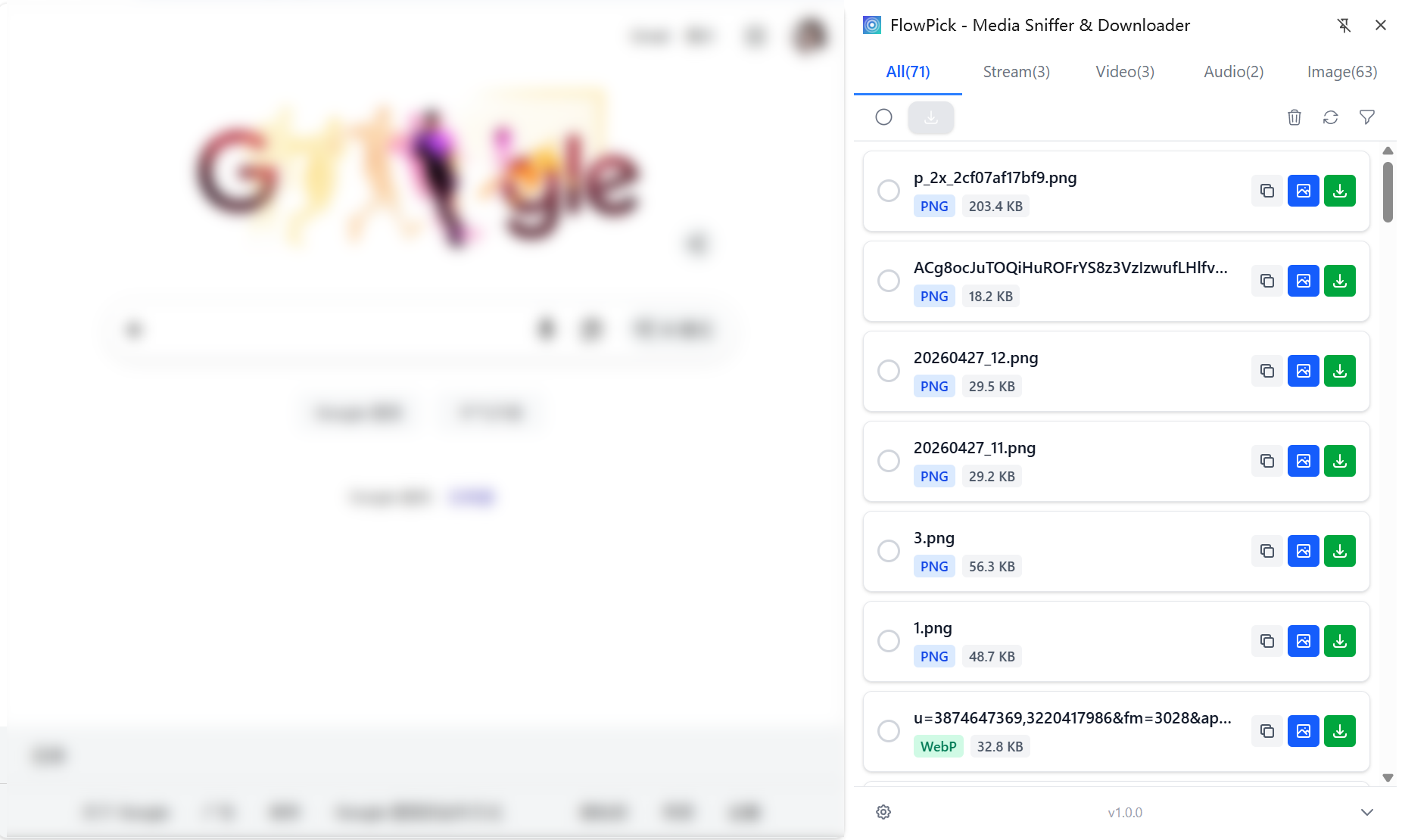
Step 3: Switch to the Images Tab
In the popup, click the Images tab (📷) to see a thumbnail grid of detected images.
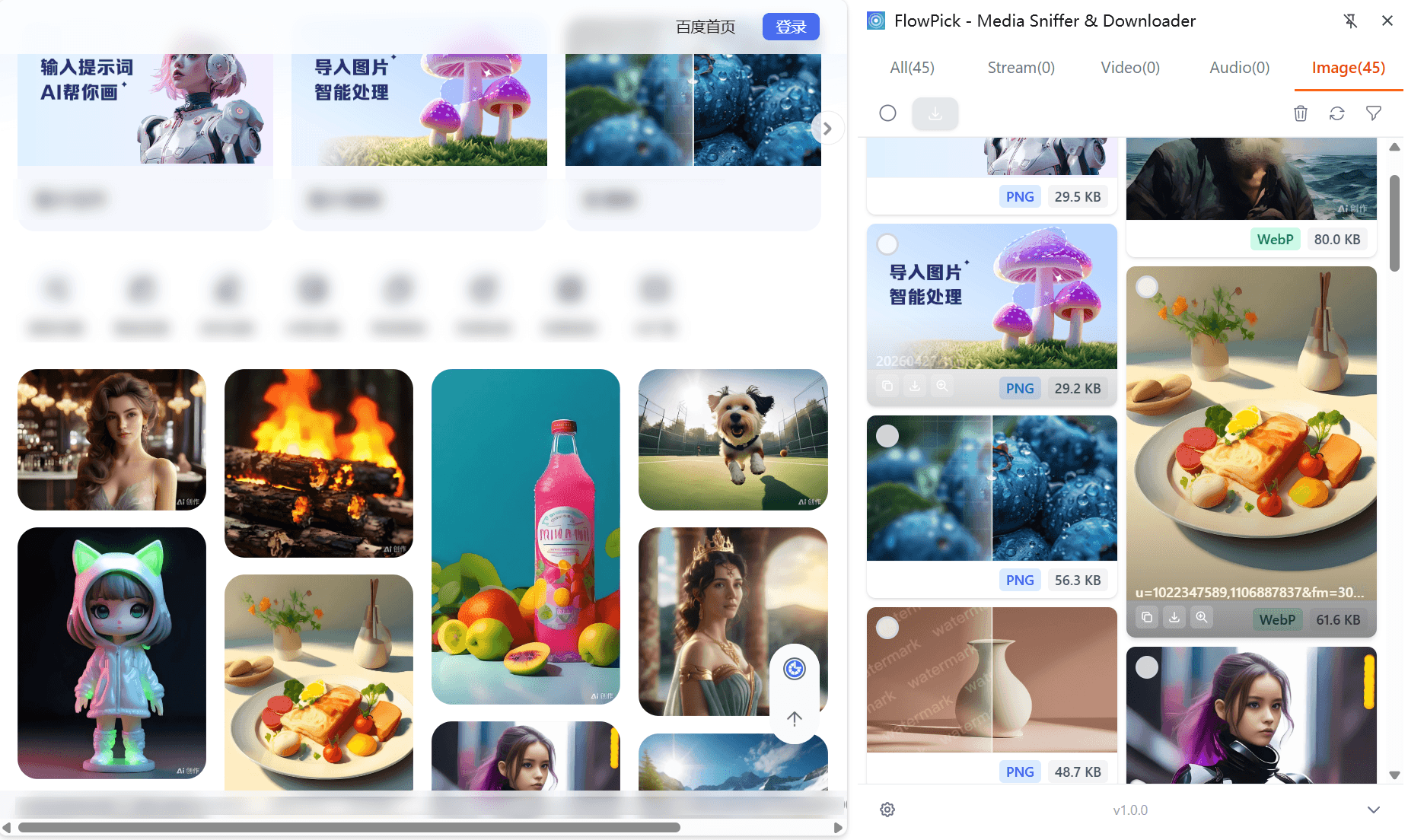
The count might be higher than you expected — most pages mix in UI elements, icons, and ad images alongside content images. That's where filtering comes in.
Step 4: Filter What You Want
Filter by format: check only the formats you need. If you only want JPEG, just check .jpg/.jpeg. Skip .gif if you don't need animations.
Filter by file size: setting a minimum KB threshold is the most effective filter. Anything under 5 KB is almost certainly an icon or decorative element, not the content image you're after.
| Scenario | Suggested Minimum File Size |
|---|---|
| Filter out icons and decorations | 10 KB |
| Content galleries | 50 KB |
| High-res images only | 100 KB+ |
The thumbnail grid updates after filtering. Give it a quick scan to make sure nothing slipped through — unchecking an image now is way faster than deleting it after download.
Step 5: Select Target Images
- Select All to grab everything after filtering
- Click individual thumbnails to toggle selection
- Shift + click to select a range
Step 6: Download
Click Download Selected. FlowPick downloads the selected images concurrently, saving each one to your browser's default download folder with the original filename.
The popup shows progress. Concurrent download means 50 images don't take 50 times as long as one.
Where Downloaded Files Go
All images are saved to your browser's default download folder (usually your system Downloads directory), each keeping the filename from the original URL. No ZIP packaging.
If the downloaded images have generic names like image.jpg or photo001.jpg, that's because the site's image URLs never had meaningful filenames — not a FlowPick issue.
Real-World Scenarios
Product Image Comparison Research
You're comparing products across multiple suppliers. Each product page has 5-8 angle shots, lazy-loaded in a gallery.
How to do it: open the product page, click each thumbnail to load the full-size images, then use FlowPick with a minimum file size filter (say, 150 KB) to isolate the large product shots.
Photography Portfolio Archiving
Portfolio sites often use full-screen scrolling layouts with heavy lazy-loading — images only load when that section scrolls into the viewport.
How to do it: browse through the entire page at a normal pace, then open FlowPick and set a 100 KB minimum. You'll get clean high-res photos without thumbnails mixed in.
Course Slides and Technical Documentation
Technical docs and online courses often have tons of diagrams and process screenshots with no standalone download button.
How to do it: scroll through the entire doc page, use FlowPick to filter out UI elements by file size, and batch-grab all the diagrams.
Bilibili Posts and Comments
Images in creator posts and comment sections are all detectable by FlowPick. Scroll through the page first to let images load, then open FlowPick to scan. This pairs well with Bilibili video downloading — videos in the video tab, images in the image tab, all from the same popup.
Which Sites Work Well (and Which Don't)
Works well on:
- Pixiv / ArtStation: gallery-style sites where images go through standard network requests. Scroll through, then scan — works great.
- Notion public pages: shared Notion pages with embedded images can be grabbed in one pass.
- Bilibili posts: creator posts and comment images, batch-captured after scrolling to load.
Not great on:
- Google Image search results: images in search results are hosted on third-party domains. CORS restrictions may block downloads. Better to jump to the original page and download from there.
- Canvas-rendered galleries: a few sites render images via WebGL/Canvas. In this case, images don't go through network requests, so FlowPick can't detect them.
- Hotlink-protected images: some sites embed IP-bound signature tokens or
Refererchecks in image URLs. FlowPick can detect the URL, but a direct request returns 403. In that case, right-click → open in new tab and save manually.
Privacy Note
FlowPick's image scanning runs entirely within your browser tab. Detected image URLs and downloaded files never leave your device. Downloads are direct requests from your browser to the image hosting server — no FlowPick server is involved.
The same FlowPick extension handles different media types just by switching tabs. Images in the image tab, videos in the video tab, audio in the audio tab. If you're interested in the other two, check out the guides below.
Recommended Reading
- How to Download M3U8/HLS Streams: A Complete Beginner's Guide — images, video, audio — FlowPick uses the same sniffing logic for all of them. This one covers HLS streaming fundamentals and step-by-step instructions.
- How to Sniff and Download Audio from Any Website — same workflow as image downloading, just switch to the audio tab.
- How to Download Bilibili Videos to Your Computer — Bilibili videos and images often need to be saved together. This covers the video side.
- FlowPick vs. Video DownloadHelper — batch image downloading is a feature FlowPick has that Video DownloadHelper doesn't. This article compares the two in detail.