
How to Download a Video from a Direct URL
You see a video, right-click and there's no "Save As". There's no .mp4 in the address bar either. You're almost certainly looking at one of two situations: it's a segmented stream like M3U8/MPD, or it's a direct link that's been hidden. This article is only about the second case: how to dig the hidden direct link out, how to tell whether it can actually be downloaded, and where it gets stuck when it can't.
First, What Counts as a Direct Link
A direct link is a download where "one URL points at one file." You grab the address, drop it into a downloader, and a single request pulls down the whole MP4, WebM, MOV, or MKV. No HLS/DASH playlist assembly, no fetching segments one by one.
| Direct link | HLS / DASH stream | |
|---|---|---|
| URL points to | a single file | manifest + segments |
| How it downloads | one request | parse manifest, then fetch & merge segments |
| Failure looks like | 403 / 404 / empty file | glitchy video, no audio, failed merge |
Everything below is about direct links. If what you actually have is a .m3u8 or .mpd URL, don't grind through this post. Wrong direction, and every method is wasted effort.
How to Confirm It's a Direct Link
The .mp4 extension alone isn't enough. Signed URLs can hide the extension, and a server can mislabel the content type. Check the request URL, response status, Content-Type, and whether the response actually contains playable media. A video/* type is a useful clue, not conclusive proof.
Method 1: Watch the Network Panel in DevTools
Open the video page, press F12 to open DevTools, switch to the Network tab, filter for mp4 or webm, and start playing the video:
- Find a request whose URL contains
.mp4/.webm. - Open it and check the
Content-Typein the response headers. - If it's
video/mp4orvideo/webm, that's your direct link.
Method 2: Verify Directly with curl
Once you have a candidate URL, let curl tell you what it actually returns (swap in your own URL):
curl -sI "https://cdn.example.com/course/lesson1.mp4" | head -n 10
Two lines matter:
HTTP/1.1 200 OK
Content-Type: video/mp4
Content-Length: 52428800
Some servers reject HEAD requests or return different headers for HEAD and GET. If this check is inconclusive, inspect the actual media request in DevTools or make a small authorized range GET request. text/html may indicate a login or error page rather than a video. For FlowPick's detection scope, see Video Sniffing — Supported Video Formats.
Download with the FlowPick Extension
Step 1, open the page where the video actually plays, and let it run for a few seconds so the direct link really gets requested.
Step 2, open the FlowPick extension, filter the resource list by "video," and pick entries with video/mp4 or video/webm — not the thumbnail or the poster image.
Step 3, confirm the preview plays correctly on the right, and if the format looks right, hit download.
Step 4, after the download finishes, open the file and confirm it plays before closing the source page.
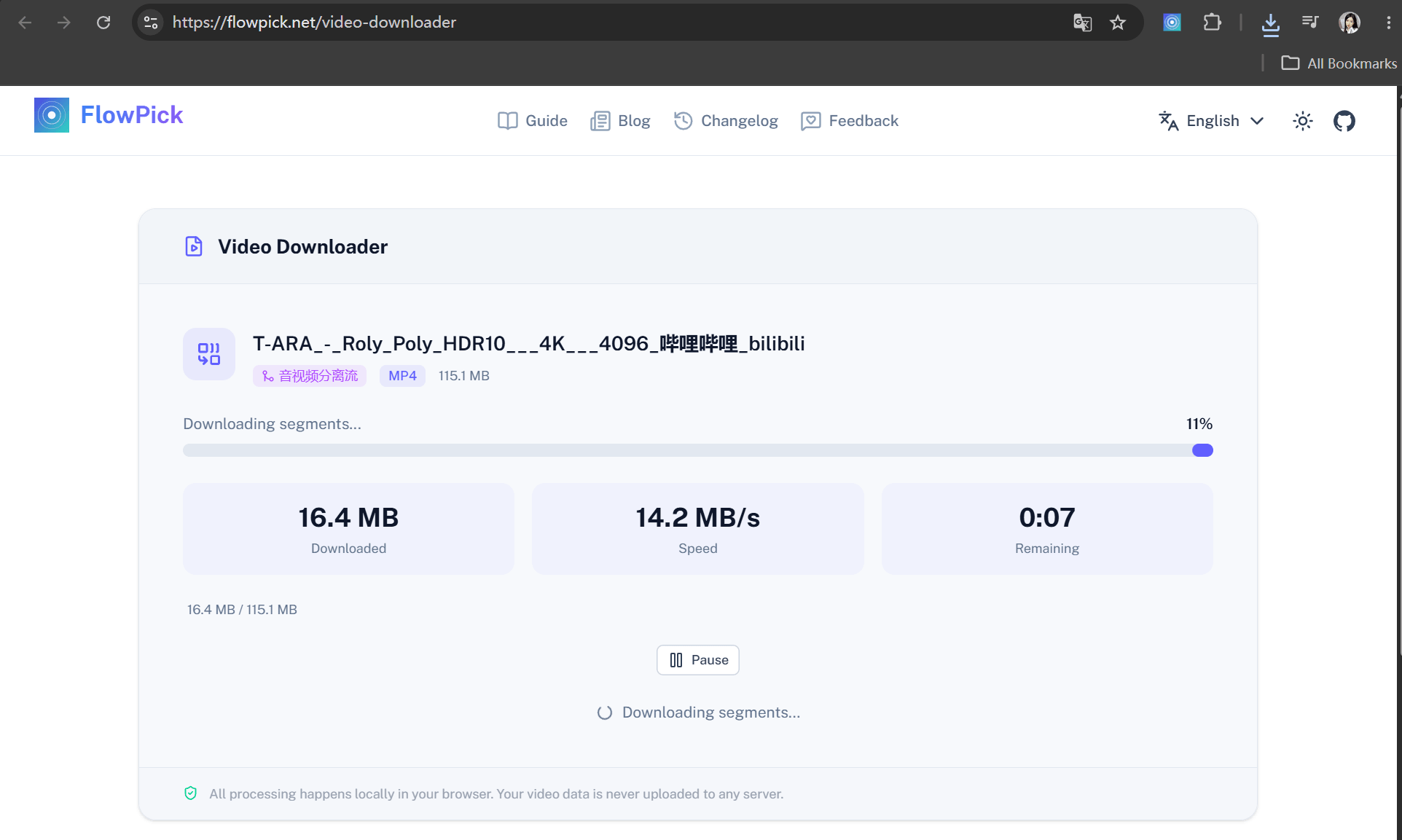
The extension can use browser-mediated request context for supported downloads, which may help with ordinary Referer or session checks. It does not guarantee access or permission to save a file. The web tools run on a different origin and cannot simply inherit a source site's login state. See Online Tools — Differences from Extension.
If you only download occasionally and there's no hotlink check in the way, the Online Video Downloader works too — paste the direct URL and it downloads.
The Common Errors, One by One
403 Forbidden: The Request Headers Are Wrong
A 403 response means the server did not authorize that request. Common technical causes include:
- Referer check: the request must come from a specific page; an empty Referer gets rejected outright.
- Cookie / login state: the login cookie is missing, or expired.
- Temporary token: the
?token=in the URL has expired.
Reproduce it with curl to confirm whether Referer is the culprit:
# No headers at all — see what a bare request returns
curl -s -o /dev/null -w "%{http_code}\n" "https://cdn.example.com/course/lesson1.mp4"

# Try again with the page's Referer
curl -s -o /dev/null -w "%{http_code}\n" \
  -H "Referer: https://www.example.com/course/123" \
  "https://cdn.example.com/course/lesson1.mp4"
If adding the Referer changes the response, the source is checking page context. Use the extension only when you are authorized to save the media; a working Referer or login session does not itself grant copying rights. Proxy details are in FlowPick v1.1.1: Protected Resource Preview & Download.
404 Not Found: The URL Expired or You Grabbed the Wrong One
The most annoying part of direct links is "it worked yesterday, 404 today." Three common causes:
- Signed URL expired: cloud storage (OSS, COS, etc.) direct links carry a validity window that runs out anywhere from minutes to hours.
- The file was cleaned up: the uploader deleted it, or the CDN cache was purged.
- You copied the wrong URL: you grabbed the player page URL, not the file's direct link.
If the URL is genuinely dead, there's no saving it — go back to the original video page and re-detect, grab a fresh direct link, and download again.
CORS Errors: A Trap Specific to Online Tools
If a browser-based online tool reports a CORS error, the source server may not permit cross-origin reading from flowpick.net. For media you are authorized to save, the extension may use its browser permissions to make a supported request, but success is not guaranteed. Details are in Video Sniffing — Detection Differences: Extension vs Online Tool.
Incomplete Files: The Server Doesn't Support Resume
The download starts fine, but pausing starts it over from zero, or it fails halfway. This comes down to whether the server supports HTTP Range. Range lets the client request just part of a file — resume depends entirely on it.
Test whether the server supports it:
curl -s -o /dev/null -w "%{http_code}\n" \
  -H "Range: bytes=0-1023" \
  "https://cdn.example.com/course/lesson1.mp4"
# 206 = this request was served as a byte range
# 200 = this request returned a full response instead
206 shows that this particular request accepted a byte range; it does not prove that your downloader can resume an interrupted file. Resume also depends on stable URLs, validators, and client behavior. A 200 response means this request did not produce a partial response; check the response headers and source behavior before drawing a broader conclusion.
What If the Downloaded File Won't Play
The file downloaded, the size looks right, but the player says "format not supported" or shows a black screen. Here you have to separate two concepts: container and codec. .mp4 is the container; inside it could be H.264, or it could be H.265/HEVC or AV1. Container support isn't codec support — the player has to be able to decode the codec layer inside before anything plays.
For codec issues, first identify the actual video and audio codecs. Remuxing only changes the container; converting an unsupported codec to H.264 requires transcoding. See Format Conversion for available operations and Browser Compatibility for playback limits.
A large-file download can stall because of network interruptions, expired source URLs, memory pressure, storage quota, or save permissions. Where supported, choosing a save folder allows a streaming output path and can reduce buffering. Blob fallbacks can use more memory, but there is no universal size cutoff. Check the failure stage and available storage before retrying; see Known Issues.
Can't Tell Direct Links, M3U8, and MPD Apart?
If the URL's extension carries .m3u8 or .mpd, it isn't a direct link at all — it's a streaming manifest. Don't force it:
.m3u8→ M3U8 Downloader.mpd→ DASH Downloader
The Takeaway
For a permitted download, find the playing page, inspect the actual media request, save through a supported path, and open the result to verify it. A 403 calls for checking authorization and request context; a 404 may mean the URL expired; a CORS error affects browser-based tools; an incomplete file needs a closer look at the connection and server response.
Related Articles
- Video Sniffing — Direct Video Files —— how direct-link detection works and what's covered
- How FlowPick Merges Hundreds of Video Segments into MP4 in the Browser —— what happens behind the scenes when merging segmented streams
Recommended Reading
- How to Download Bilibili Videos to Your Computer —— one site where direct links, DASH, and HLS all show up at once
- FlowPick vs. yt-dlp —— a few clicks in the browser vs. typing for an hour in the terminal