
Batch Download
FlowPick supports triggering downloads for multiple resources with one click, utilizing browser's native download capabilities to complete file saving. This document explains how to efficiently select and batch download media resources.
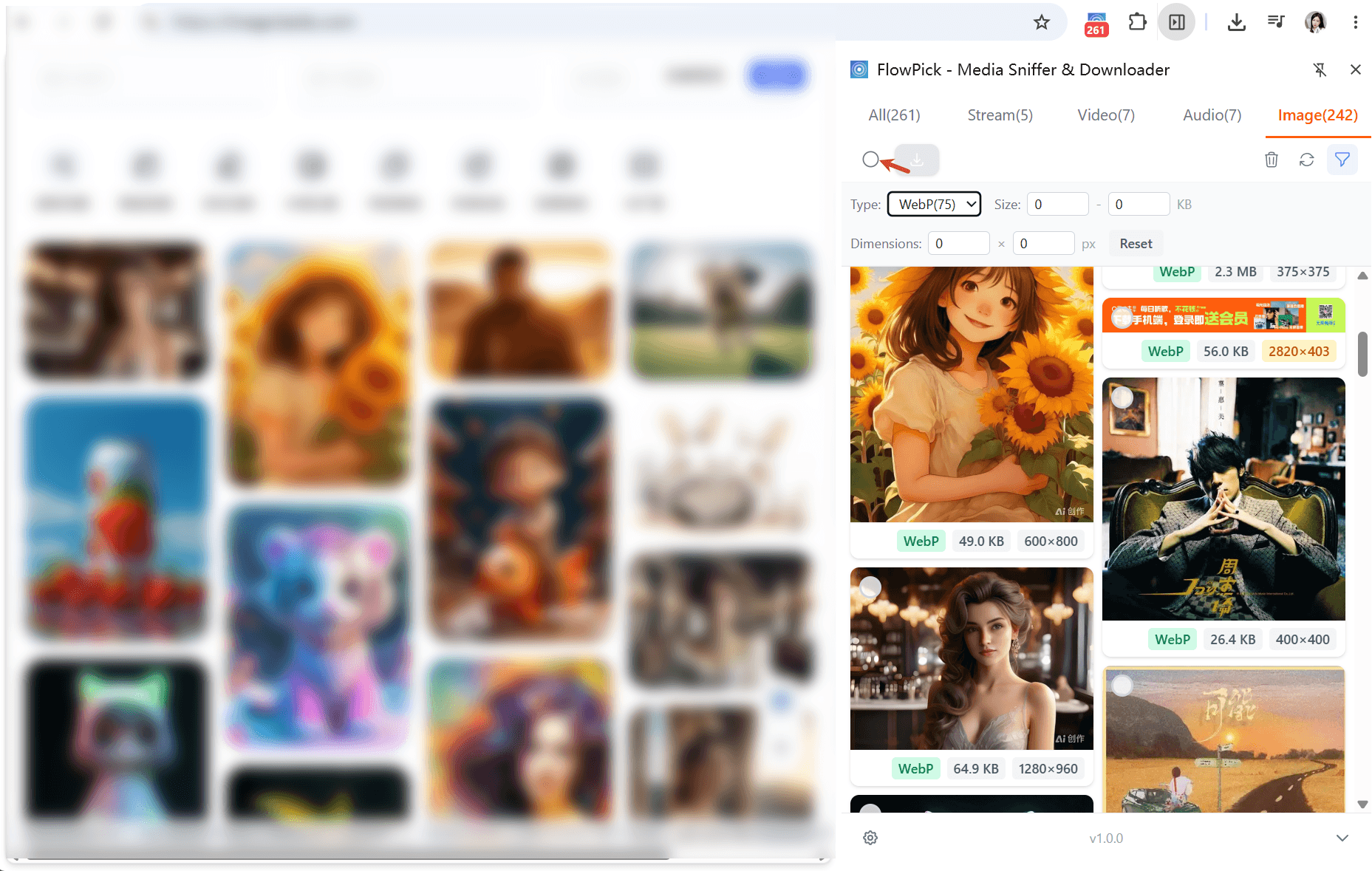
Basic Operations
Select Multiple Resources
In FlowPick popup:
- Each detected resource has a checkbox on the left
- Check resources you want to download
- Click "Download Selected" button at top
- All selected resources join download queue
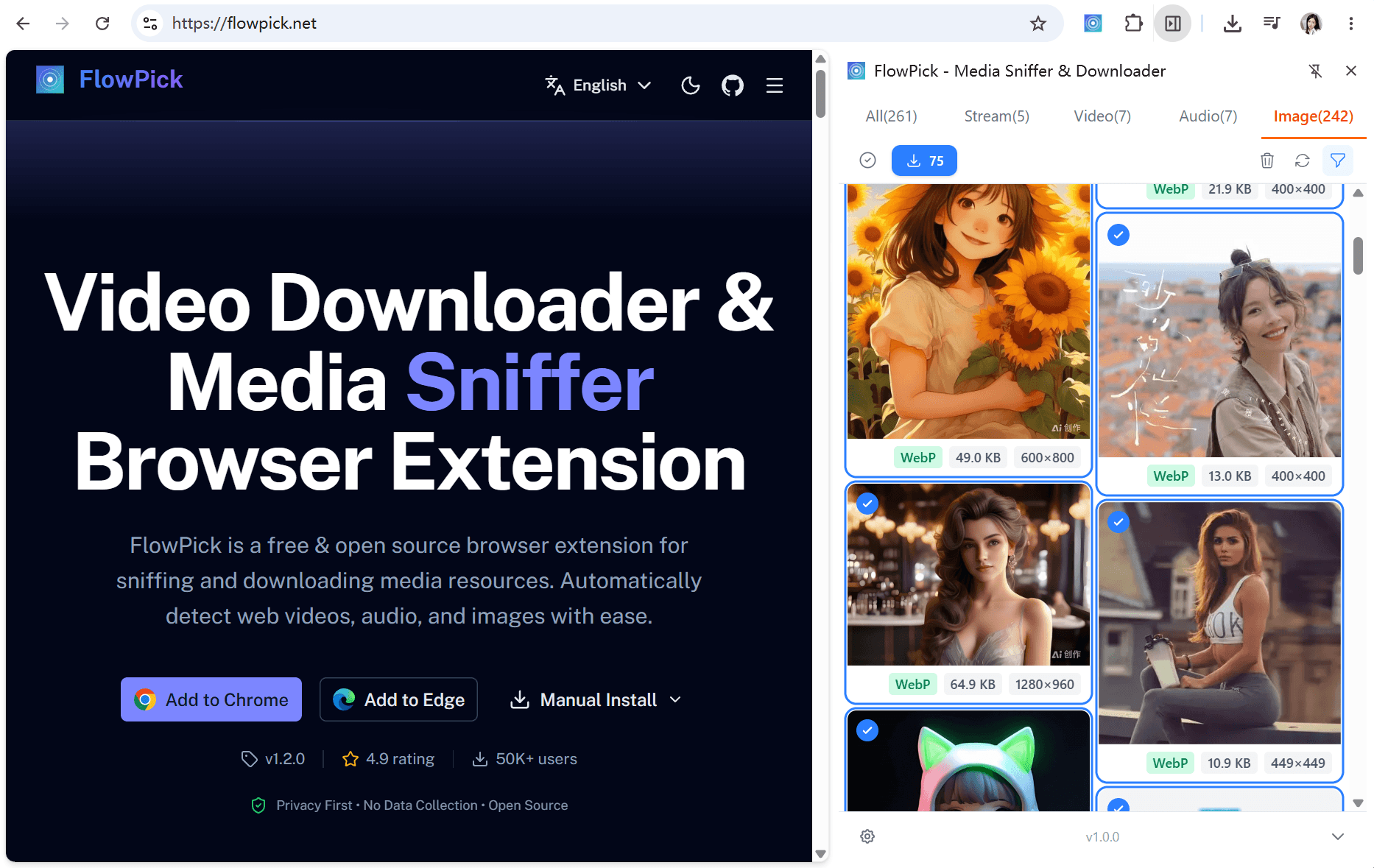
Select All / Deselect All
- Click select-all checkbox at top of list to select/deselect all resources
- Combine with type filter (video/audio/image) to achieve category-based selection
- Combine with size filter to exclude small files then select all
Resource Selection Strategies
Some tips for efficiently selecting target resources:
| Strategy | Operation | Use Case |
|---|---|---|
| Filter then Select All | Set size/format filter → Select All | Download only HD images from gallery |
| Category Select All | Switch to "Audio" tab → Select All | Batch download from podcast list page |
| Manual Selection | Manually check needed resources | Download specific lessons from course videos |
| Exclusion Method | Select All → Uncheck unneeded ones | Many resources but only need to exclude a few |
Download Behavior
Browser Native Download
During batch downloads, FlowPick triggers native downloads via browser extension's downloads API. This means:
- Download tasks are handed off to browser's built-in download manager
- You can view and manage all downloads in browser's download page (
Ctrl+J) - Download progress, pause, resume, cancel operations are all controlled by browser
- Files are saved to browser's default download directory
Triggering Method
After clicking "Download Selected", FlowPick sends each resource's download request to browser in sequence. Browser handles these requests according to its own settings:
- Chrome/Edge: Initiates multiple downloads simultaneously, can see list in download page
- Each resource downloads independently without affecting others
- If a resource fails to download, it won't affect other resources
Difference from Single File Download
| Dimension | Single Download Button | Batch "Download Selected" |
|---|---|---|
| Operation method | Click download button for a resource | Check multiple resources then trigger with one click |
| Number of downloads | One at a time | Multiple at once |
| Progress viewing | Displayed in extension | Unified management in browser download page |
| Use case | Temporarily download 1-2 files | Collect multiple images, audios or videos |
Practical Tips
Avoid Browser Limitations
Browsers limit simultaneous downloads; pay attention during batch downloads:
| Issue | Symptom | Suggestion |
|---|---|---|
| Downloads blocked | Browser prompts "Allow site to download multiple files?" | Click allow, or relax restrictions in settings |
| Slower speed | Too many large files downloading at once | Download in batches of 5-10 at a time |
| Site rate limiting | Some resource downloads fail | Lower concurrency or retry after interval |
File Management
Batch-downloaded files all go into browser default download directory:
- Plan ahead: Clear up or organize download folder before downloading, easier to categorize later
- Use filtering: Exclude unneeded small files via size and format filters
- Batch operations: When there are many resources, categorize and download in batches (e.g., videos first, then images)
Recommendations for Typical Scenarios
| Scenario | Recommended Approach |
|---|---|
| Gallery sites (50+ images) | Set minimum size 100KB first to filter thumbnails, then select all |
| Podcast lists (20 episodes) | Select all download, browser will queue them |
| Course videos (one per page) | Open pages one by one, add each to queue |
| Mixed-type pages | Switch tabs to select videos and images separately |
Use Cases
Gallery Batch Download
Batch save images from image websites:
- Open webpage containing gallery
- Open FlowPick, switch to Images tab
- Set minimum file size filter (e.g., 50KB) to exclude thumbnails
- Select all or manually choose needed images
- Click "Download Selected"
Tip: Use format filter to only download specific formats (e.g., only PNG not WebP).
Course Video Batch Download
Online courses usually contain multiple videos:
- Open each course video page in turn
- Each page's video will be detected by FlowPick
- Check needed videos and click download
- Browser will handle the rest
Podcast Batch Download
Podcast websites usually have multiple audio files:
- Open podcast list page
- Play each audio for a few seconds to trigger detection
- Switch to Audio tab, select all and download
Corporate Training Videos
Corporate training platforms usually contain series courses:
- Open each training video in turn
- Videos will be detected, check them and trigger batch download
Personal Media Archiving
Batch save personal content from social media, video platforms:
- Open page needing archiving
- Detect and select target resources
- Click to batch download locally
Best Practices
Disk Space
Estimate space needed before batch downloading:
| Resource Type | Typical Single Size | Estimated 10 | Estimated 50 |
|---|---|---|---|
| Video (1080p 30min) | 300-600 MB | 3-6 GB | 15-30 GB |
| Video (4K 60min) | 1.5-3 GB | 15-30 GB | 75-150 GB |
| Audio (MP3 podcast) | 10-50 MB | 100-500 MB | 0.5-2.5 GB |
| Image (HD) | 1-10 MB | 10-100 MB | 50-500 MB |
| Image (thumbnail) | 10-100 KB | 0.1-1 MB | 0.5-5 MB |
Filtering More Important Than Selecting All
The worst thing about batch downloads is getting a bunch of useless stuff. Make good use of filtering:
- Images: Set minimum file size (e.g., 50KB), filter out icons and thumbnails
- Format: If you only need PNG, don't include WebP
- Type: If you only want videos, don't check background music
Download in Batches
When there are especially many resources, don't select all at once:
- Download what you want most first
- Check if results are correct
- Decide whether to continue downloading the rest
FAQ
What's the difference between batch download and clicking download one by one?
Batch download is convenient — check multiple resources once, click once. Individual download requires clicking every time. When there are over 3 resources, using batch is more convenient.
Will browser block batch downloads?
Maybe. Chrome defaults to prompting "This site is attempting to download multiple files", just click allow. If frequently blocked, can relax restrictions in browser settings.
Where are downloaded files?
In browser's default download directory. Windows typically C:\Users\YourUsername\Downloads. To change location, adjust in browser settings.
Can I download many large videos simultaneously?
Yes, but browser automatically controls concurrency. Too many large files downloading at once may slow down all speeds. Recommend doing it in batches.
Will closing FlowPick popup affect downloads?
No. Downloads have been handed off to browser, they'll continue even if popup is closed. You can press Ctrl+J anytime to open browser download page and check progress.
Related Documentation
- Usage Guide — Basic operation instructions
- Configuration Reference — Filter settings and other configuration options
- Video Sniffing — Detection principles for video resources
- Audio Capture — Detection and download of audio resources
- Image Download — Image filtering and batch download
- Online Courses Download — Course video batch download scenarios
- Podcast Audio — Podcast batch download scenarios
- Gallery Batch Download — Image batch collection scenarios
- Common Issues Troubleshooting — Diagnosis for download failures
- Known Issues — Known limitations
- FAQ — Other common questions