
Keyboard Shortcuts
FlowPick provides keyboard shortcuts to improve operational efficiency. All shortcuts can be customized in browser's extension management page.
Default Shortcuts
| Shortcut | Action | Description |
|---|---|---|
Alt+Shift+F | Open FlowPick popup | Quickly open extension panel without clicking icon |
Alt+Shift+D | Download all detected media | One-click download of all resources detected on current page |
Alt+Shift+D triggers Batch Download, all detected resources will join download queue in FIFO order.Shortcut Scope
Shortcuts are divided into two scopes:
| Scope | Description | Use Case |
|---|---|---|
| Global (Global) | Works anywhere in browser, including other applications | Need to quickly switch to FlowPick from other apps |
| In Chrome (In Chrome) | Only works when browser window has focus | Daily use, avoid conflicts with other apps |
By default, FlowPick's shortcuts are set to "In Chrome" scope to avoid conflicts with other application shortcuts.
Modifying Scope
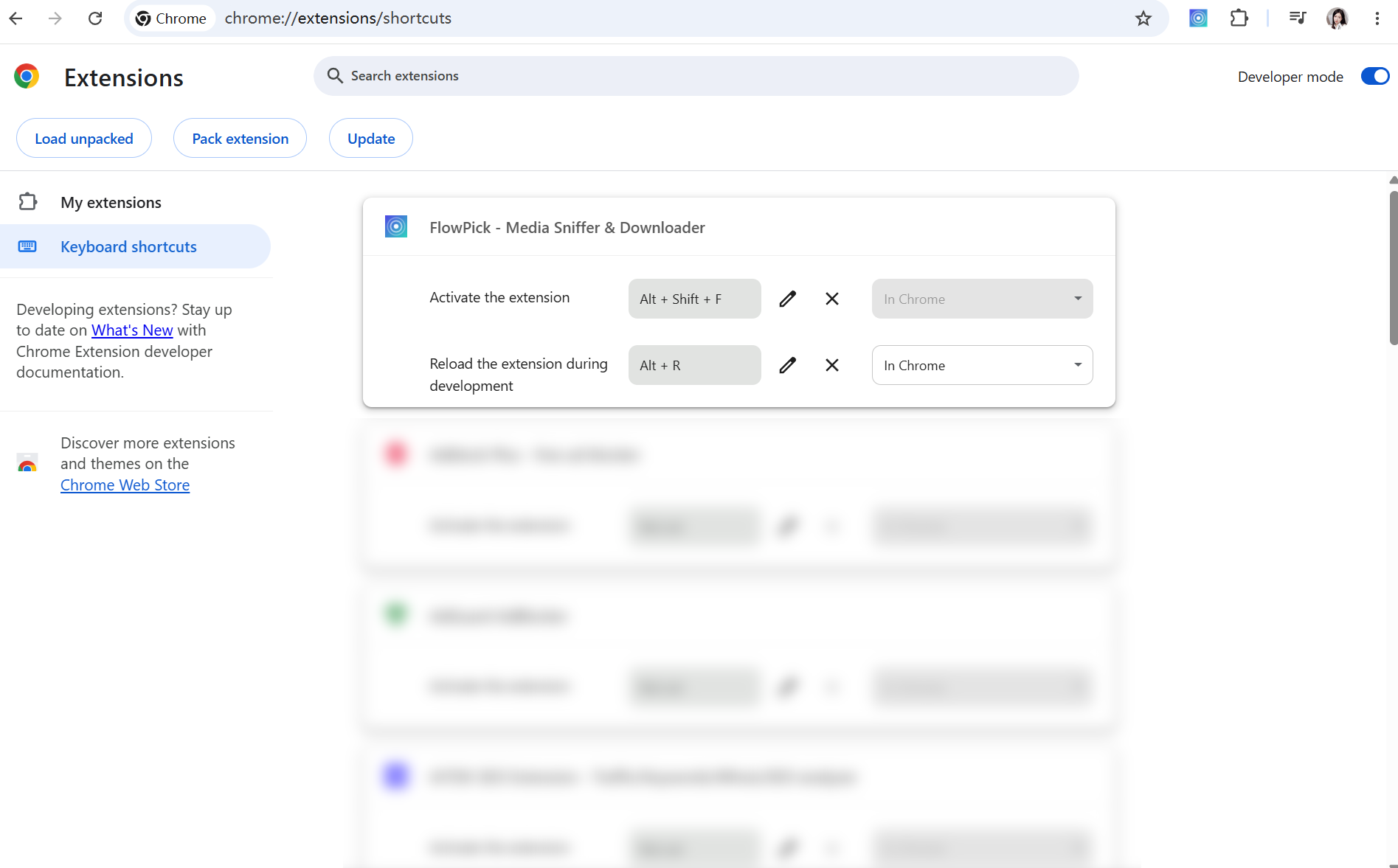
- Open
chrome://extensions/shortcuts - Find FlowPick's corresponding shortcut
- Click dropdown menu on right
- Select "In Chrome" or "Global"
Customizing Shortcuts
Chrome / Edge
- Enter
chrome://extensions/shortcutsin address bar (Edge users enteredge://extensions/shortcuts) - Find FlowPick
- Click edit icon for corresponding action
- Press new shortcut combination
- Click "OK" to save
Shortcut Format
Shortcuts must be one of following formats:
| Format | Example | Description |
|---|---|---|
Ctrl+<Key> | Ctrl+Y | Most common combination |
Ctrl+Shift+<Key> | Ctrl+Shift+Y | Avoid conflict with browser shortcuts |
Alt+<Key> | Alt+F | One-hand friendly |
Alt+Shift+<Key> | Alt+Shift+F | FlowPick default format |
Ctrl+Alt+<Key> | Ctrl+Alt+D | Less commonly occupied |
Where <Key> can be a letter (A-Z), number (0-9), or function key (F1-F12).
Ctrl corresponds to Command key, Alt corresponds to Option key. Shortcuts are configured independently on macOS and Windows.Conflict Handling
If set shortcut conflicts with other extensions or browser built-in shortcuts:
- Browser will show warning prompt
- Later-set shortcut will override earlier binding
- Recommend using uncommon combinations to avoid conflicts
Known Common Conflicts:
| Shortcut | Conflict Target | Recommended Alternative |
|---|---|---|
Ctrl+Shift+F | Chrome DevTools search | Alt+Shift+F (FlowPick default) |
Ctrl+D | Browser "Add bookmark" | Alt+Shift+D (FlowPick default) |
Alt+F | Some apps' "File" menu | Alt+Shift+F |
Ctrl+Shift+Y | Some extensions | Alt+Shift+Y |
Recommended Custom Schemes
| Usage Habit | Recommended Shortcut | Reason |
|---|---|---|
| Frequent use | Alt+F | One-hand operation, quick trigger |
| Avoid conflicts | Ctrl+Shift+Y | Less occupied by other software |
| Developers | Alt+Shift+V | Distinguish from DevTools shortcuts |
| macOS users | Cmd+Shift+F | Follows macOS shortcut conventions |
| Multi-extension users | Alt+Shift+<custom> | Uniformly use Alt+Shift prefix to avoid confusion |
Efficiency Workflows
Integrating shortcuts into daily operations can significantly improve efficiency:
Quick Sniffing Workflow
Alt+Shift+F → View detection results → Alt+Shift+D → One-click download all
This workflow is suitable for quickly saving all media resources on a page without mouse operations.
Selective Download Workflow
Alt+Shift+F → Mouse check target resources → Click "Download Selected"
Suitable when only some resources are needed. Combine with Image Filtering or Type Switching to further narrow scope.
Batch Course Download Workflow
Open course page → Wait for video playback → Alt+Shift+F → Confirm detection → Close panel
Open next lesson → Wait for video playback → Alt+Shift+F → Confirm detection → Close panel
... (repeat)
All added → Alt+Shift+F → View queue progress
Technical Notes
Shortcuts are implemented via Chrome Extension API's commands configuration:
{
  "commands": {
    "_execute_action": {
      "suggested_key": {
        "default": "Alt+Shift+F"
      },
      "description": "Open FlowPick popup"
    },
    "download-all": {
      "suggested_key": {
        "default": "Alt+Shift+D"
      },
      "description": "Download all detected media"
    }
  }
}
_execute_action is Chrome's built-in command name used to trigger extension popup (action.onClicked in Manifest V3).
Platform-Specific Shortcuts
Manifest V3 supports setting different default shortcuts for different operating systems:
{
  "commands": {
    "_execute_action": {
      "suggested_key": {
        "default": "Alt+Shift+F",
        "mac": "MacCtrl+Shift+F"
      },
      "description": "Open FlowPick popup"
    }
  }
}
| Platform | Modifier Keys | Description |
|---|---|---|
| Windows / Linux | Ctrl, Alt | Standard PC keyboard |
| macOS | MacCtrl, Command | MacCtrl corresponds to Control key, Command corresponds to Cmd key |
| ChromeOS | Search, Ctrl | Search key can replace some modifier keys |
FAQ
What if shortcuts don't work?
- Check if shortcut conflicts with other extensions: open
chrome://extensions/shortcutsto view - Confirm shortcut scope: if set to "In Chrome", ensure browser window has focus
- Try resetting shortcut
- Check if extension is disabled
Can I set multiple shortcuts to trigger the same action?
Chrome extension API doesn't support setting multiple shortcuts for same command. But you can add extra commands by modifying commands configuration in manifest.json.
Can macOS and Windows shortcuts be different?
Yes. In manifest.json, you can set different default shortcuts for default, mac, linux, chromeos. Users can also customize separately for current platform in chrome://extensions/shortcuts.
Related Documentation
- Usage Guide — Basic popup operations and shortcut usage scenarios
- Batch Download — Details on batch download triggered by
Alt+Shift+D - Image Download — Image filtering and download combined with shortcuts
- Configuration Reference — Configuration options related to download behavior
- Installation Guide — Extension installation and toolbar pinning
- Common Issues Troubleshooting — Diagnosis and resolution of shortcut conflicts
Batch Download
FlowPick batch download guide — leveraging browser's native download capabilities to save multiple media resources with one click. Covers resource selection, filtering tips, and practical advice.
Search & Filter
URL search (fuzzy and regex), type and size filters in the FlowPick popup, and how to combine them to locate resources quickly.